
Minikube can run using several different drivers for the virtual machine. Podman was found to be too difficult to get running without admin privileges, but users can be given Hyper-V admin privileges without any other privileges assigned, and it worked in the end. The other options, such as Docker, may work better, but haven’t been explored yet.
Prerequisites
Administrative privileges:
-
Installing Minikube
-
Adding Hyper-V Privileges and enabling it as an optional Windows feature
Install and Configure Minikube
These instructions are based on the Minikube documenation here: https://minikube.sigs.k8s.io/docs/start/
-
There are several options for operating system, architecture, and installation methods. Choose and run the right one for your system (these instructions assume you’re using Windows). I ran
winget install Kubernetes.MinikubeThis will ask for an admin password.
-
Enable Hyper-V
Enable-WindowsOptionalFeature -Online -FeatureName Microsoft-Hyper-V -All -
Apply driver-relevant privileges. I’m not sure if this can be applied remotely in any way, but for Hyper-V the user needs to be added to the Hyper-V Administrators user group on the machine itself.
-
Log out and back in again to apply the changes.
-
Set minikube defaults:
minikube config set driver hypervWithout doing this step you would need to specify the --driver flag when you run Minikube
-
Configure resources.
minikube config set memory 12000
minikube config set cpus 4
Setting the memory to higher than the default (6000, at least on my machine) may be costly for your host’s resources, but it has solved a recurring problem I had of the minikube api server stopping without any obvious reason.
-
Start Minikube. This will take a few minutes.
To disable minikube from using https in the URL for the images, you have to include the flag for insecure registries. Include the URL of the registry.minikube start --insecure-registry prototypeyoutapbasic.azurecr.io -
Configure Registry Creds addon (more info: https://minikube.sigs.k8s.io/docs/handbook/registry/) This will ask you which registries you want to enable. Enable the Azure Container Registry and enter the URL “prototypeyoutapbasic.azurecr.io”.
These are the credentials:
Client ID: fae854c3-90e7-4aa4-b915-00e3155fc6ef
Password: Hip8Q~lHeOM7NUNJrLHeSL10O6iZTqZ-WHQwfdsS
Copy and paste the client ID, press enter, then do the same for the password.
NOTE: As you can see below, Minikube will not ask you for the password. The interface will seem to hang indefinitely. Simply past the password (again, it won’t be displayed to the terminal) and press enter.> minikube addons configure registry-creds Do you want to enable AWS Elastic Container Registry? [y/n]: n Do you want to enable Google Container Registry? [y/n]: n Do you want to enable Docker Registry? [y/n]: n Do you want to enable Azure Container Registry? [y/n]: y -- Enter Azure Container Registry (ACR) URL: prototypeyoutapbasic.azurecr.io -- Enter client ID (service principal ID) to access ACR: fae854c3-90e7-4aa4-b915-00e3155fc6ef ✅ registry-creds was successfully configured -
Enable the addon
minikube addons enable registry-creds -
Check the secrets on the cluster. There should be “acr-secret” in the default and kube-public namespaces, not just registry-creds-acr in kube-system. See troubleshooting below if the secrets aren’t working.
-
Kubernetes on your local system will now have a Minikube profile and have that set as the active profile, so you can start applying changes to the cluster straight away.
The first time you install the cluster it will take a long time to create all of the secrets - about a minute per namespace. In the meantime the pods will fail to start. Wait for the secrets to be created then manually restart the pods by deleting the failing ones.
Accessing Apps
See here for information about how to get to the services once they’re installed: https://minikube.sigs.k8s.io/docs/handbook/accessing/
Using the hyperv driver on Windows it’s possible to simply run
> minikube ip
172.30.233.192
> kubectl get svc -A
NAMESPACE     NAME         TYPE        CLUSTER-IP      EXTERNAL-IP   PORT(S)                  AGE
...
database      postgres     NodePort    10.101.69.114   <none>        5432:30203/TCP           150m
to get the required IP address and port combination (in the above example, the port is 30203).
However, for other drivers or environments, it’s usually required to run minikube service to open a tunnel. See the link for more information.
Troubleshooting
Credentials
The “acr-/gcr-/dpr-” secrets should be visible in the namespaces over time. if not, you may have to delete the cluster and start again.
Registry-Creds pod’s invalid permissions
The Registry Cred pod uses the default service account. This can be seen with “kubectl get pods -n kube-system” to get the name of the pod, then kubectl describe pod -n kube-system registry-creds-<id>” (replace ID with the string from the first command). The “ServiceAccount” section near the top will say “default”.
When I investigated the default account’s permissions when the registry-creds addon stopped working, it seemed to not be allowed to do much. It didn’t have any role or cluster-role bindings that I could see, but I didn’t know why it would have gained/lost any.
I couldn’t work out how to give it the right credentials, so I deleted the cluster and started again to try to get it to work and so I could compare the states of the permissions. When I checked the cluster role bindings with “kubectl get clusterrolebinding -o wide” the following line appeared:
NAME            ROLE                                   AGE   USERS       GROUPS       SERVICEACCOUNTS
minikube-rbac   ClusterRole/cluster-admin              13m                            kube-system/default
That binding was not there before the restart. I also don’t know if that was the only missing role.
Present but malfunctioning credentials
If they are present but not working properly, https://gchq.github.io/CyberChef is a useful tool for debugging. Copy the contents of the acr-secret and paste it into the input field. The contents of any of the secrets will probably be good enough, but to be thorough you can make sure it’s the secret from the namespace(s) of whichever pods are having problems.
Drag the “From Base64” instruction from the operations menu and drop it into the menu near the middle of the screen.
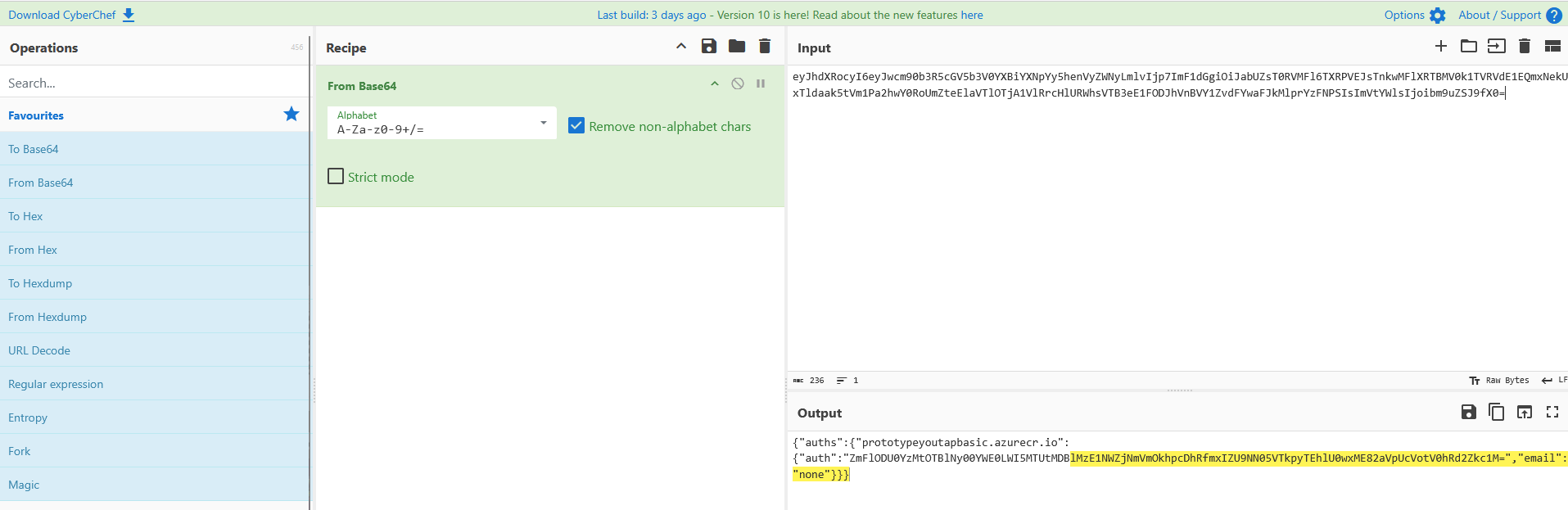
If you pasted the raw contents of the .dockerconfigjson from the secret it will look like
‘{“auths”:{“prototypeyoutapbasic.azurecr.io”:{“auth”:”…”}}}’
Copy the contents of the inner auth field and apply the same “From Base64” operation to it. The result of that operation is the <clientID>:<secret> string. Compare that with the client ID and secret above. If they’re different, reconfigure the addon to correct the credentials.
If they’re the same you will have to keep looking. Please update this section with your findings if you manage to fix it. Good luck!
Potential Postgres Connection Problem
Following instructions to test the connection to the host from the cluster, pinging host.minikube.internal fails to connect. This may be a problem if a local instance of Postgres is required. Other internet services such as Google are accessible.
Minikube API Server stopping overnight
The API Server seems to often run into problems overnight, so it stops. Running “minikube start” to get just the stopped components to run again doesn’t resolve the problem, but stopping the whole cluster with “minikube stop” then restarting it with “minikube start” works. Unfortunately sometimes the chart installations seem to be lost when this happens as well. Don’t forget to reconfigure the registry creds if the secrets disappear as well.