-
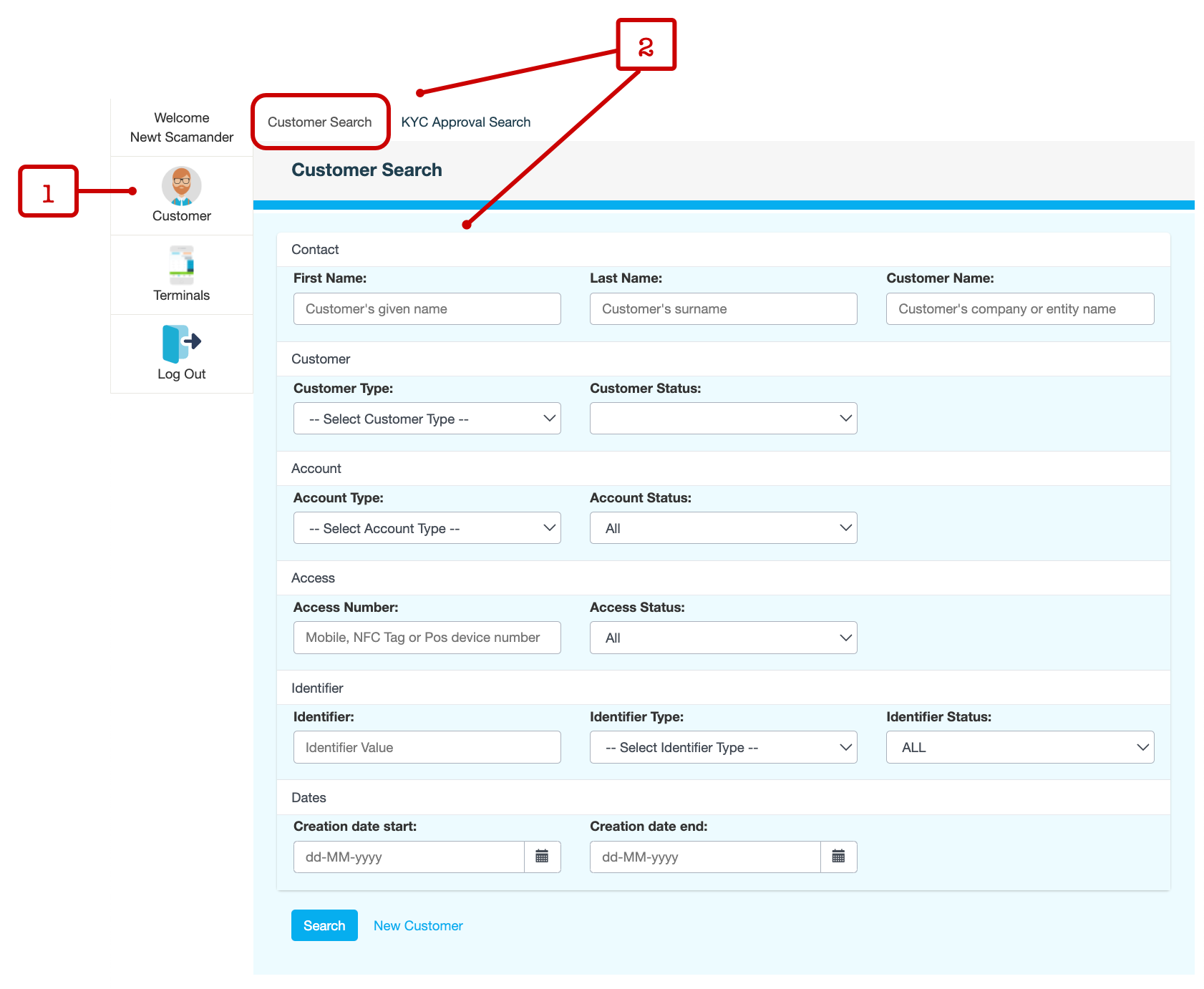
On the
CMS
menu, select Customer.
-
On the Customer Search tab, use one or more of the following fields to find a customer:
The text fields accept partial values and are not case-sensitive.
Group
Field
Description
Contact
First Name
Customer’s first name
Last Name
Customer’s last name
Customer Name
Customer's full name as recorded under Customer Summary in their customer record
Customer
Customer Type
Type of customer. For example, Merchant, Supplier, Partner.
Customer Status
Status of the customer record. For example, Embryo, Active, Closed.
Account
Account Type
Type of account that the customer holds. For example, Staff, Operator, Biller.
Account Status
Status of the account. For instance, is the account active, locked or closed?
Access
Access Number
Mobile phone number that the customer uses to access their account
Access Status
Status of the access number. For example:
-
Active – The access number is currently in use and operational.
-
Deactivated – The access number has been temporarily disabled.
-
Dispatched – The access card has been sent to the customer, but is not active yet.
-
Deleted – The access number is permanently removed and cannot be reactivated.
Identifier
Identifier
Customer’s identifier number as recorded under Customer Identification in their customer record
Identifier Type
Type of identifier. For example, Driver's License, Passport, Birth Certificate.
Identifier Status
Status of the identifier.
-
ALL – Searches for both verified and unverified identifiers.
-
Verified – The authenticity of the identification has been confirmed by checking official records to ensure that it is genuine and belongs to the person presenting it.
-
Unverified – The authenticity of the identification has not been confirmed. This may mean that the document has not been checked yet, or there are concerns about its authenticity.
Dates
Creation date start
Date range within which the customer's account was created
Creation date end
-
-
Click Search to view a list of customers who match your search criteria.
-
On locating the customer in the list displayed, click the row to open the customer record.
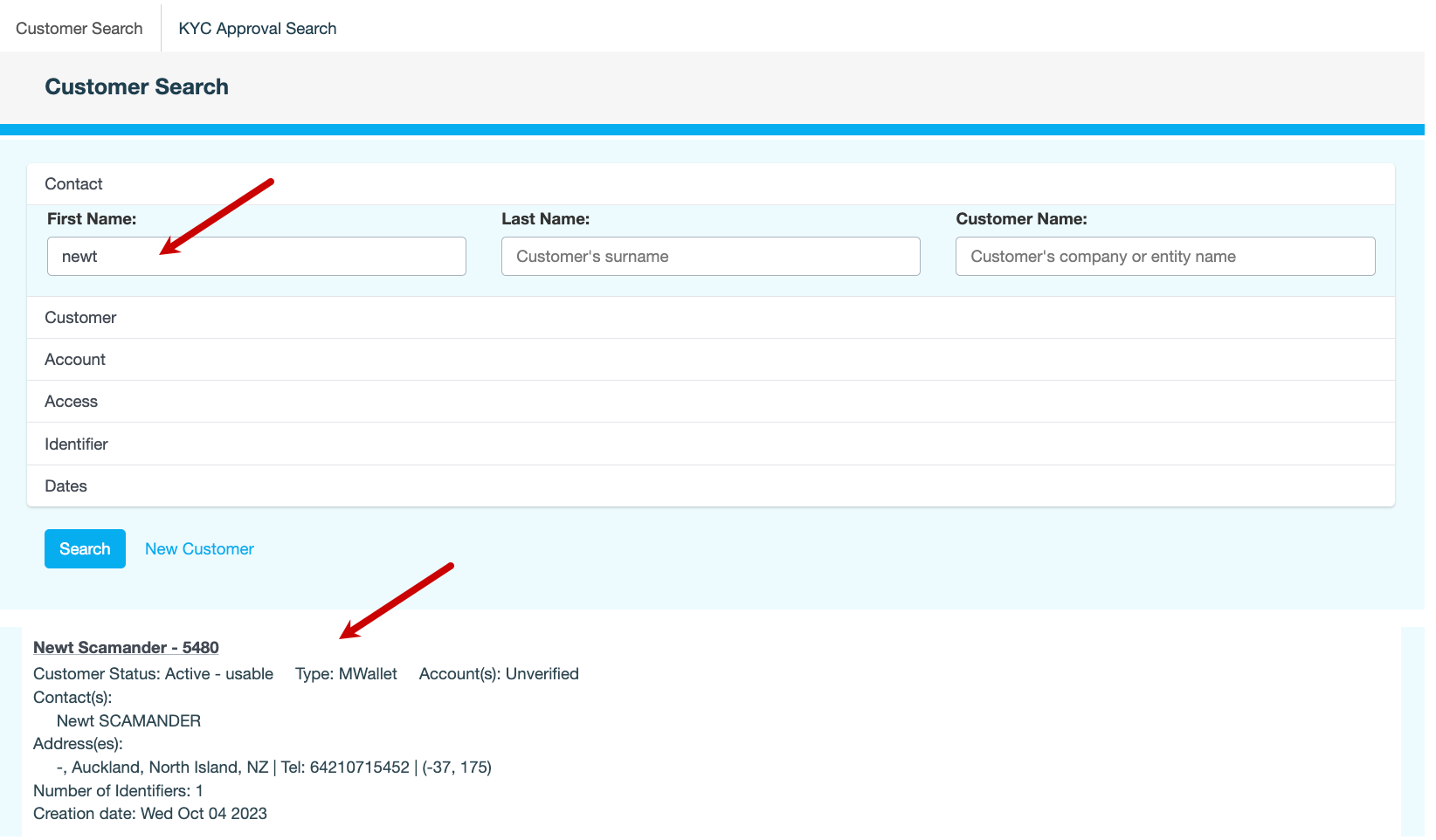
In the example below, we're trying to locate customers whose first name contains the word newt.