-
On the AMS menu, click Admin > User Management.
-
On the User Search page, click New User.
-
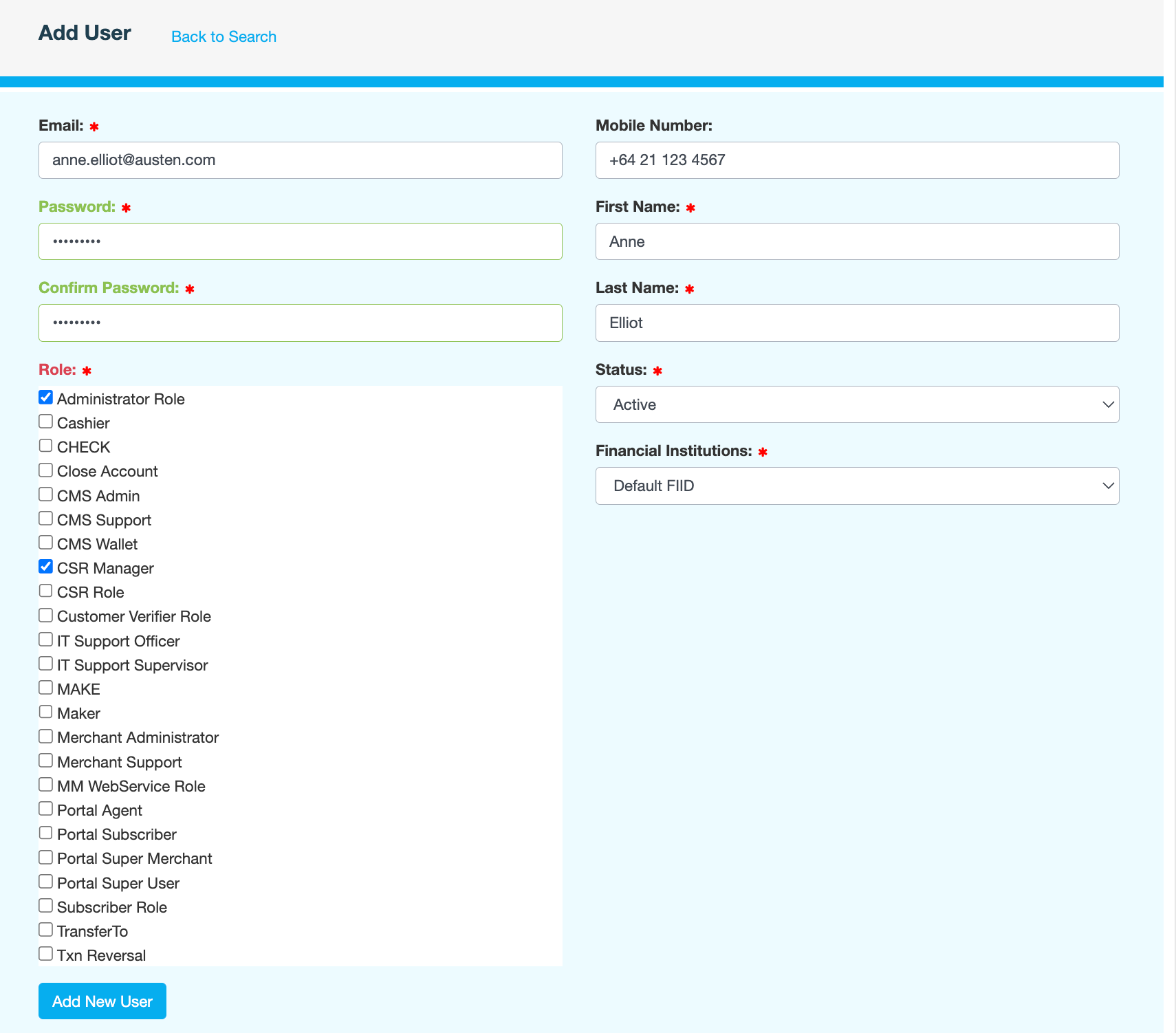
On the Add User page, enter the following information:
|
Field |
Description |
|---|---|
|
|
Email address to use to...
|
|
Password
|
Enter a strong password twice. Passwords must be at least 8 characters long and include at least one lowercase and uppercase letter, number and special character. |
|
Role |
Level of access and functionality the user will have in the Youtap systems. |
|
Mobile Number |
Mobile phone number to be used for account-related notifications. Please use the E.164 format, which is |
|
First Name |
User's given or first name. |
|
Last Name |
User's family or last name. |
|
Status |
Current state of the user account
|
|
Financial Institutions |
Organisation that the user belongs to. This ensures that users can only view and manage data within their own organisation. Select Default FIID. |
-
Click Add New User.
-
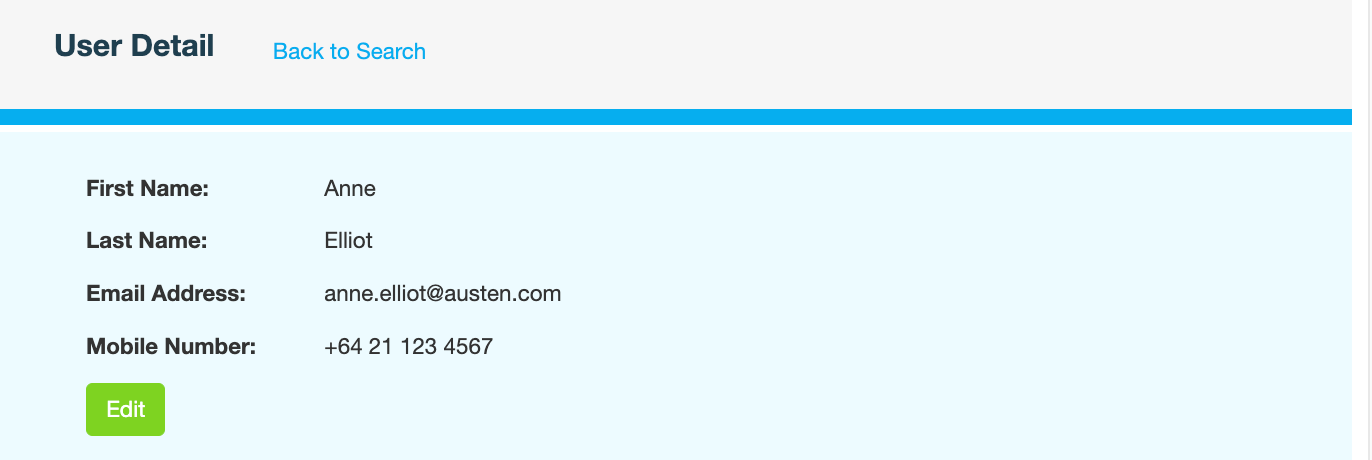
Enter a reason for adding the user, then click CONFIRM. The User Detail page is displayed.