
Follow these steps to add a wallet type that displays in the mobile app when customers log in.
-
On the
AMS
menu, click Financial > Account Management > Wallet Types.
-
On the Wallet Types page, click Add. A row is added to the bottom of the page.
-
Enter the following information:
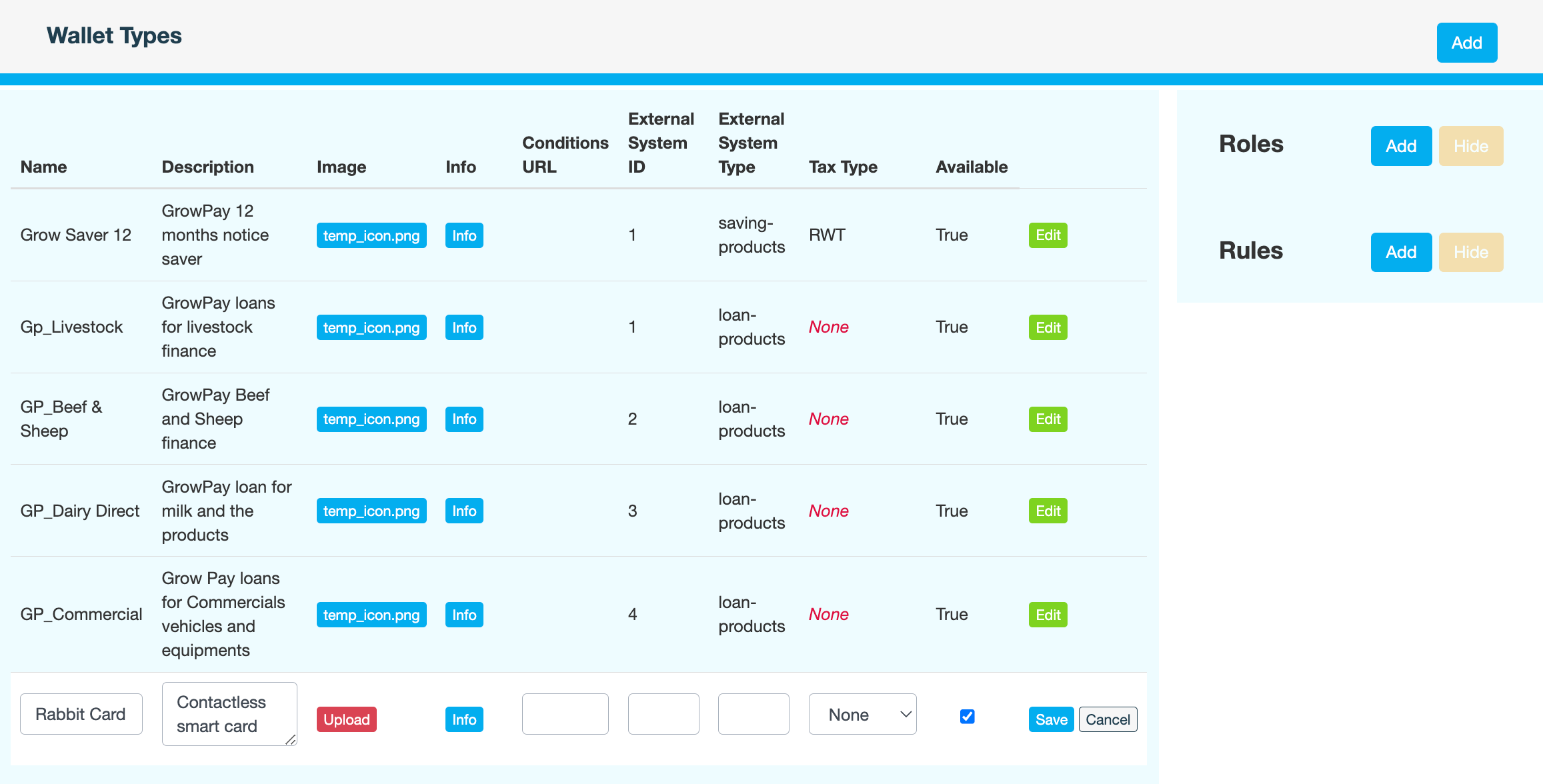
Field
Description
Name
Unique name for the wallet type
Description
Brief summary of the wallet type
Image
If you want an icon to display in the mobile app along with the product name, click Upload to upload the image file. The image must be an SVG file with an aspect ratio of 1:1. SVGs permit scalability without compromising on quality.
Info
If you want to display additional information about the product in the mobile app, enter that information here. Icons must be in SVG format with an aspect ratio of 1:1.
Conditions URL
If you have any terms and conditions, enter the URL of the Terms and Conditions page on your website.
External System ID
Leave this field blank.
External System Type
Leave this field blank.
Tax Type
Select None.
Available
If you want the product to be visible in the mobile app, ensure that the checkbox is selected.
-
Click Save.
-
Enter a reason for creating the wallet type, then click CONFIRM.
What's next