
You can create user-friendly labels for database entities such as cities, states and countries. This ensures that the English labels are accurately translated into the customer's preferred language in the mobile app.
-
On the
AMS
menu, click Languages and Translation > Translations > Tables.
-
On the Table Contents Translations page, in the Table field, select CITY or STATES or COUNTRIES.
-
In the Language field, select Thai.
-
Scroll down to the bottom of the page and click Edit.
-
Find the city, state or country whose labels you want to update.
-
Enter a short Description and Display Name for the city, state or country in the selected language. For example...
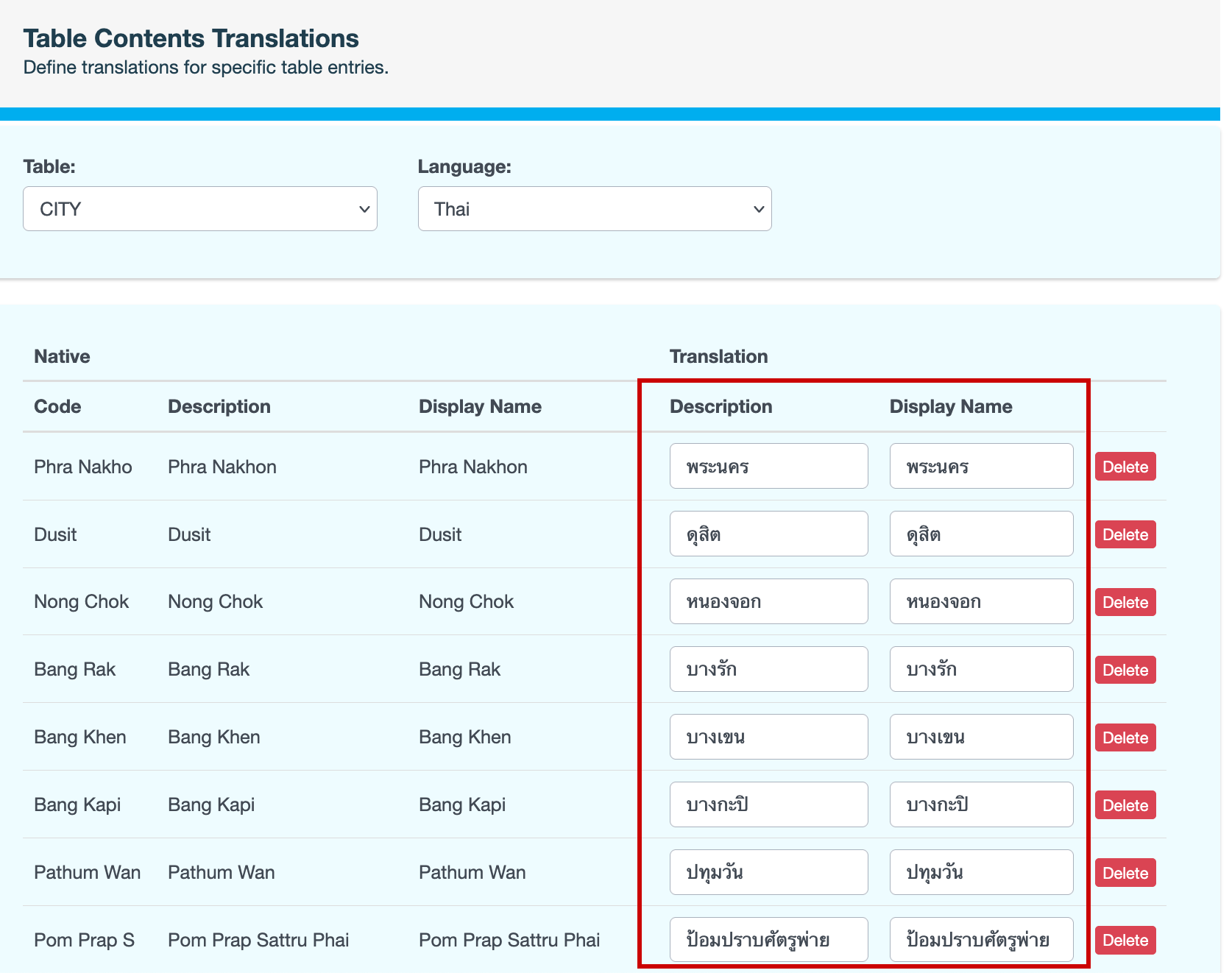
To delete a label, click Delete next to the city or state. Deleting a label will revert it to the default label in the mobile app.
-
Click Save All.
-
Enter a reason for updating the labels, then click CONFIRM. The updated labels will now be visible to customers using the mobile app in the selected language.