
To ensure the accuracy of physical addresses, Youtap apps use drop-down fields for address components. Follow these steps to add, update or delete states, cities and districts for customers to choose from when entering their address.
-
On the
AMS
menu, click Languages and Translation > Default Address Management.
-
On the Default Address Management page, select the Country whose states, cities and districts you want to manage.
Adding a state
-
Click Add next to States.
-
Enter the name of a state in this country, then click Save.
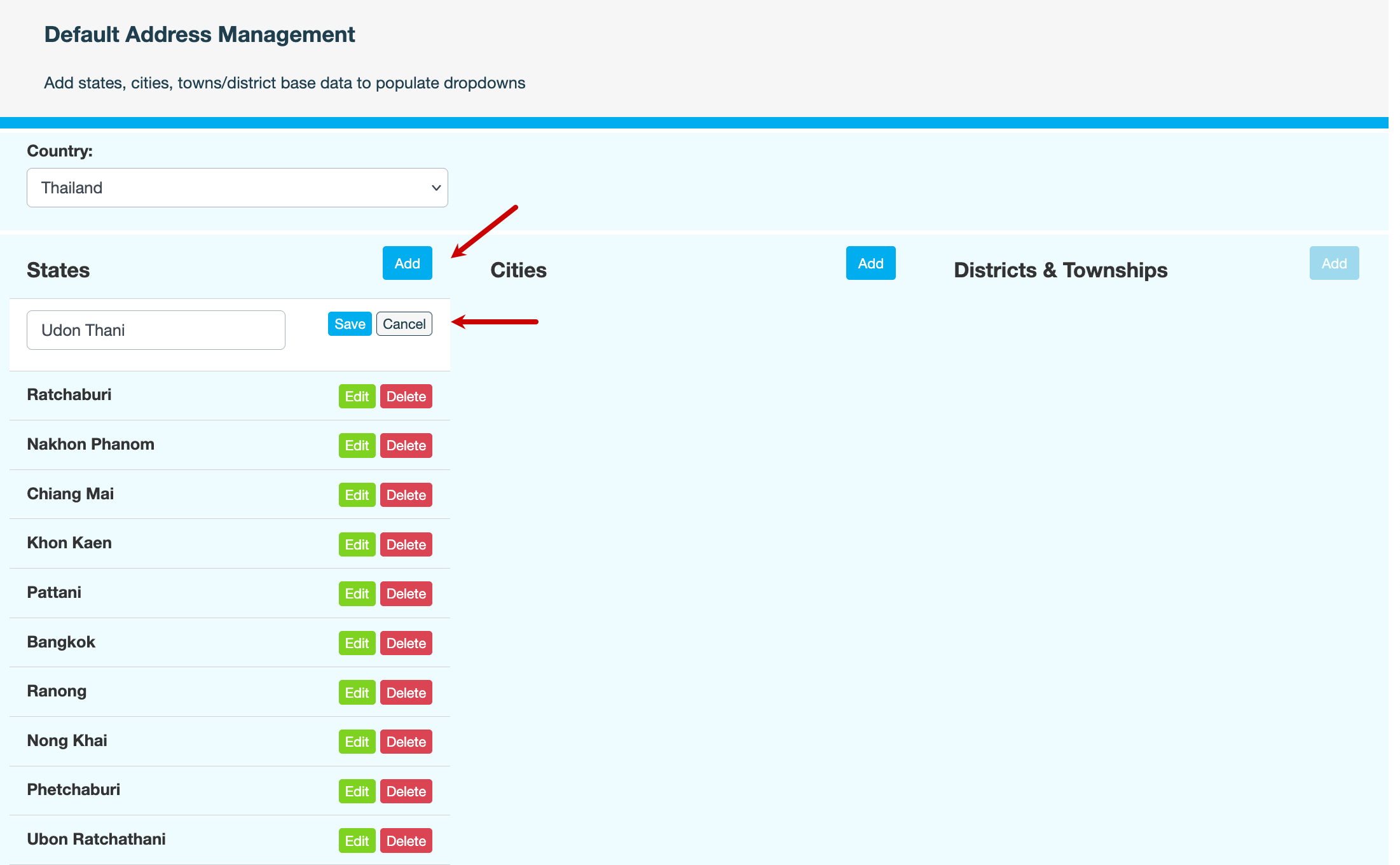
-
Enter a reason for adding the state, then click CONFIRM.
Adding a city within the state
-
Select the state you just added, then click Add next to Cities.
-
Enter the name of a city in this state, then click Save.
-
Enter a reason for adding the city, then click CONFIRM.
Adding a district (or town) to the city
-
Select the city you just added, then click Add next to Districts & Townships.
-
Enter the name of a district or town in this city, then click Save.
-
Enter a reason for adding the district or town, then click CONFIRM.
Updating an address component
-
To update an address component, click Edit next to the name of the state, city, district or town.
-
Modify the name, then click Save.
-
Enter a reason for the update, then click CONFIRM.
Deleting an address component
You cannot delete a state if it contains cities, districts or towns. Delete these elements first before trying to remove the state.
-
To delete an address component, click Delete next to the name of the state, city, district or town.
-
Enter a reason for the deletion, then click CONFIRM.