
This article explains how to set up 2FA using Authy, a Twilio service. However, the guidance can be applied to any authentication app of your choice.
Before you begin
Install your favourite 2FA app. For the purpose of this guide, we have installed and registered with Authy.
Setting up 2FA with an authentication app
-
On the AMS menu, click your username.
-
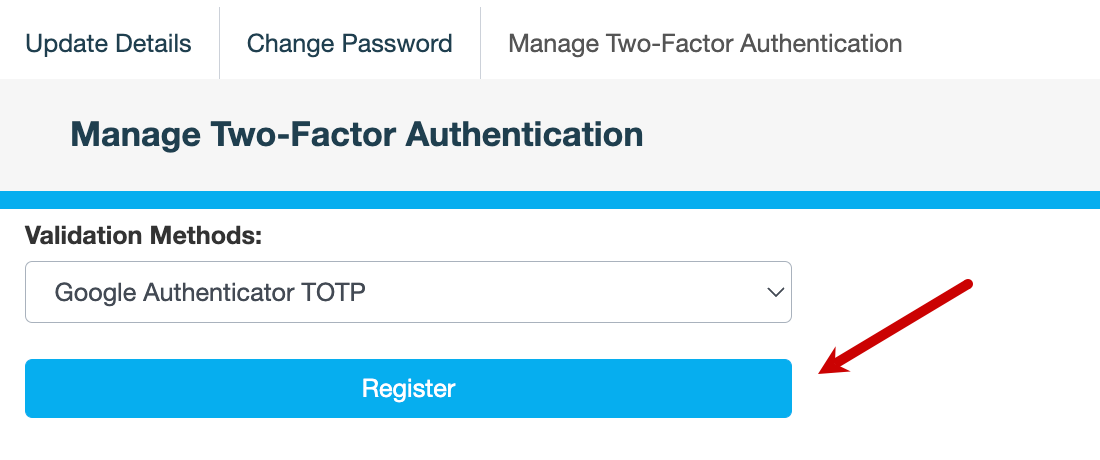
On the Manage Two-Factor Authentication tab, select Google Authenticator TOTP, then click Register.
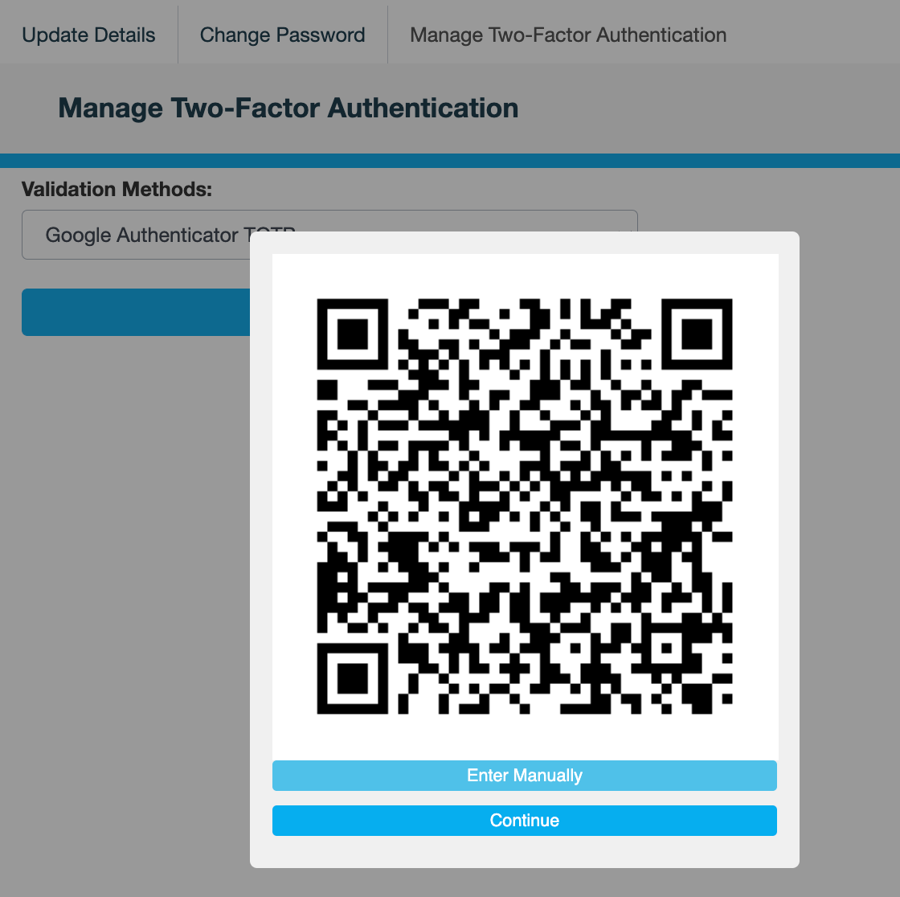
AMS displays a QR code.
-
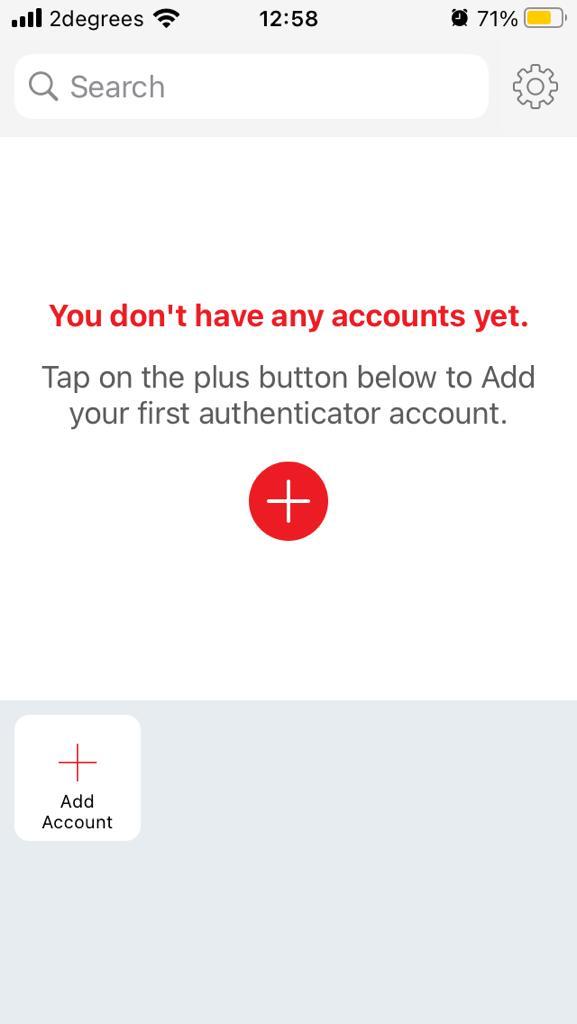
Open Authy and tap

-
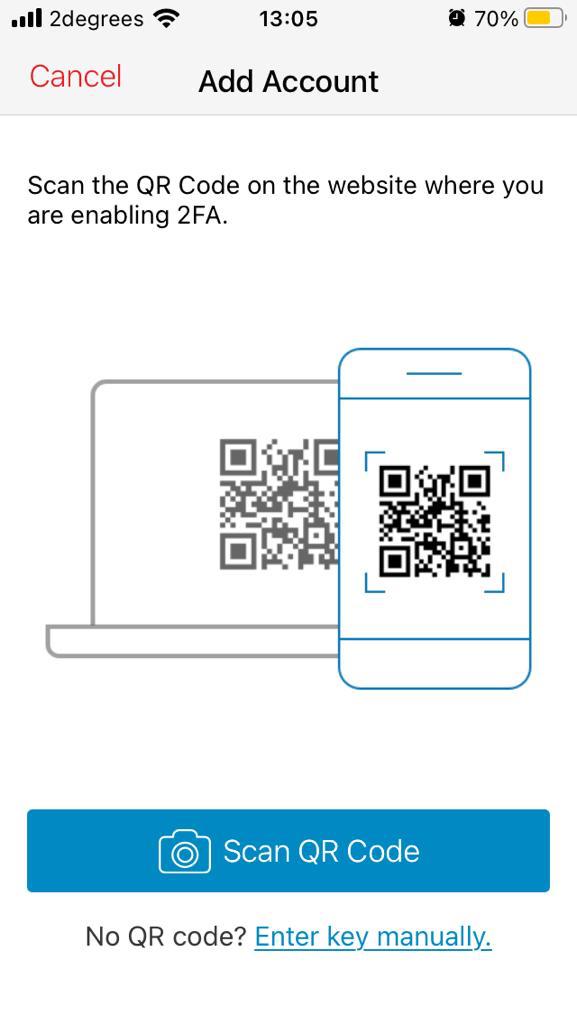
Tap Scan QR code.
-
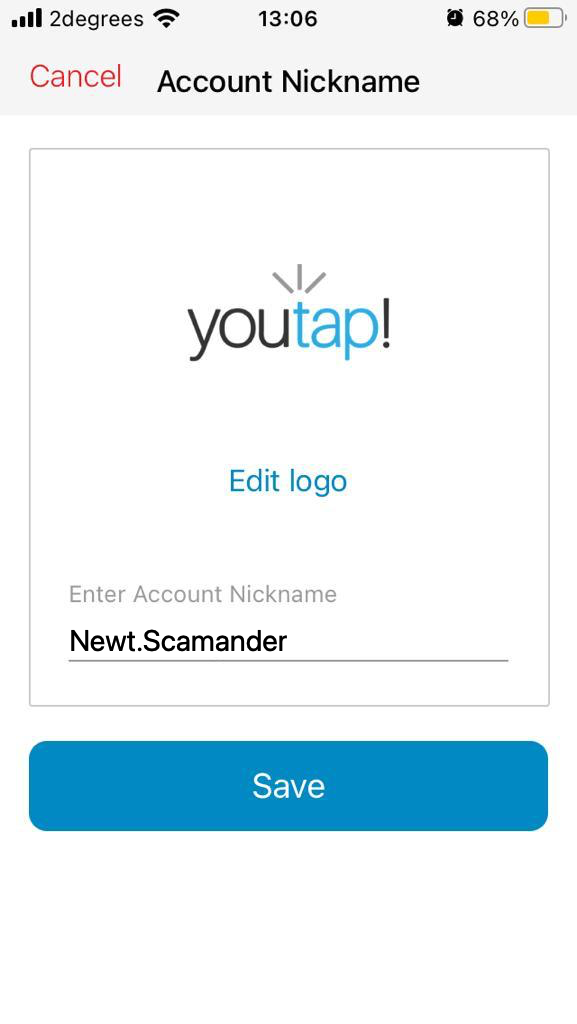
Enter a nickname for the account and tap Save.
-
In AMS click anywhere on the Manage Two-Factor Authentication page.
-
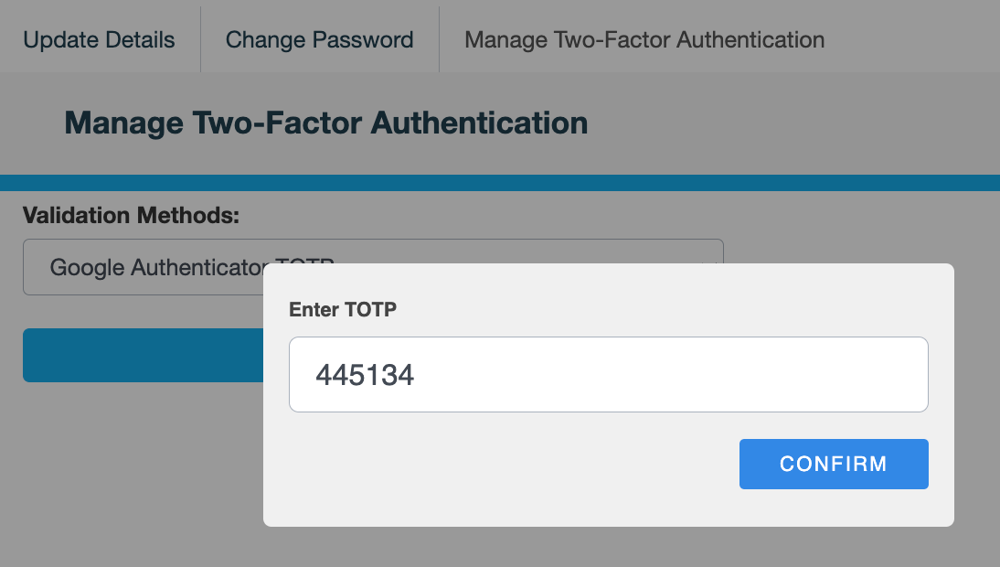
In the Enter TOTP dialog, enter the 6-digit code you see in Authy, then click CONFIRM. The TOTP is valid for 30 seconds.
The following message is displayed:
Validation Method Updated
Also see