
The mobile app includes screens for displaying fee rates and limits. You can edit the default message for each of these screens.
-
On the AMS menu, click Admin > Editable pages.
-
On the Editable Pages page, select a page type, then click Edit Default Message.
-
If required, on the Edit Page Default Message dialog:
-
Drag and drop your new image into the box with the grey dotted line using Windows Explorer or File Explorer. Ensure that your image meets the height, width and size requirements specified.
-
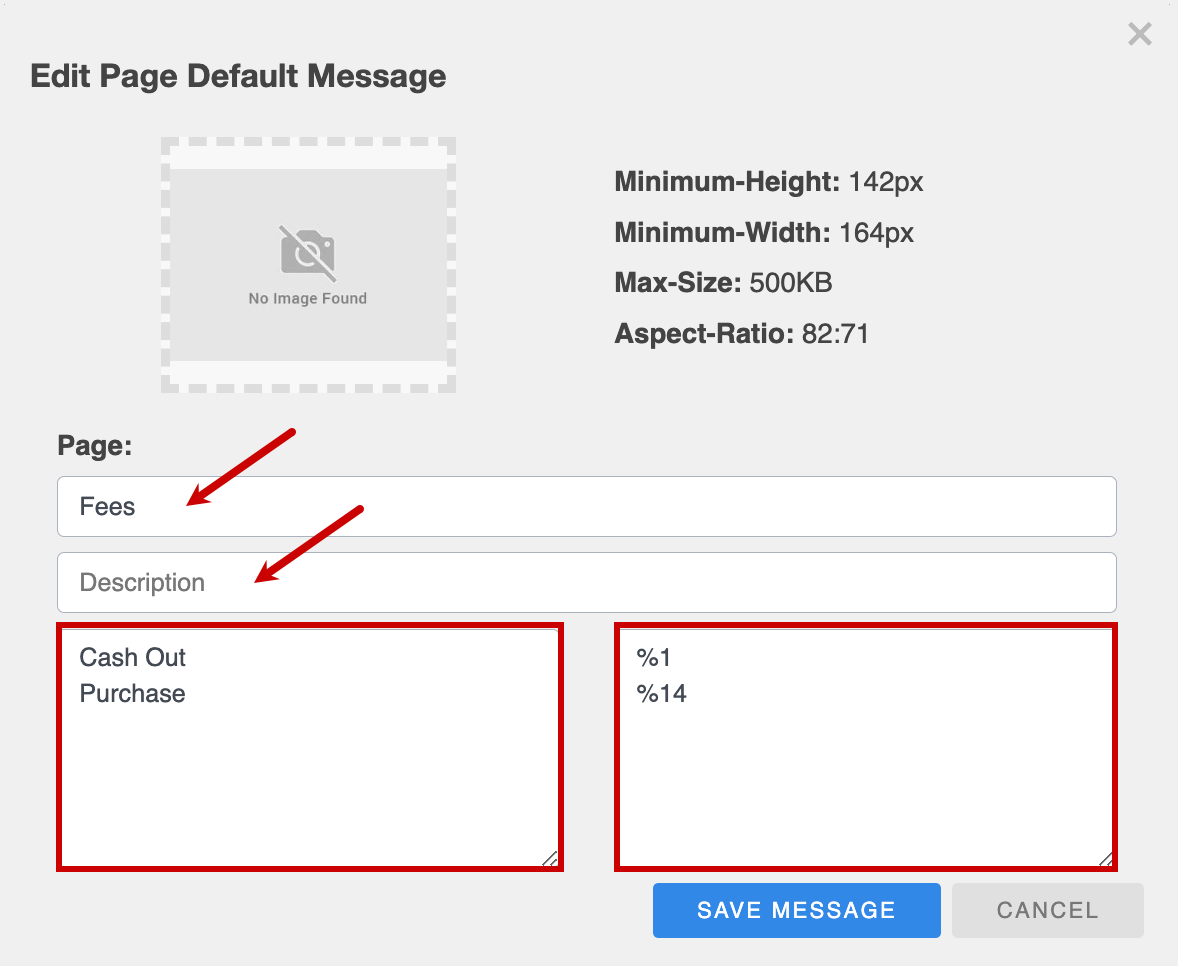
Under Page, update:
-
The title of the app page.
-
The description you want to display below the title.
-
The transaction types and their corresponding fees (or limits).
The layout is designed to work like a table, with the transaction types listed in the box on the left and the fees (or limits) listed on the right.
-
-
Click SAVE MESSAGE.
-
Enter a reason for changing the defaults, then click CONFIRM.
-